
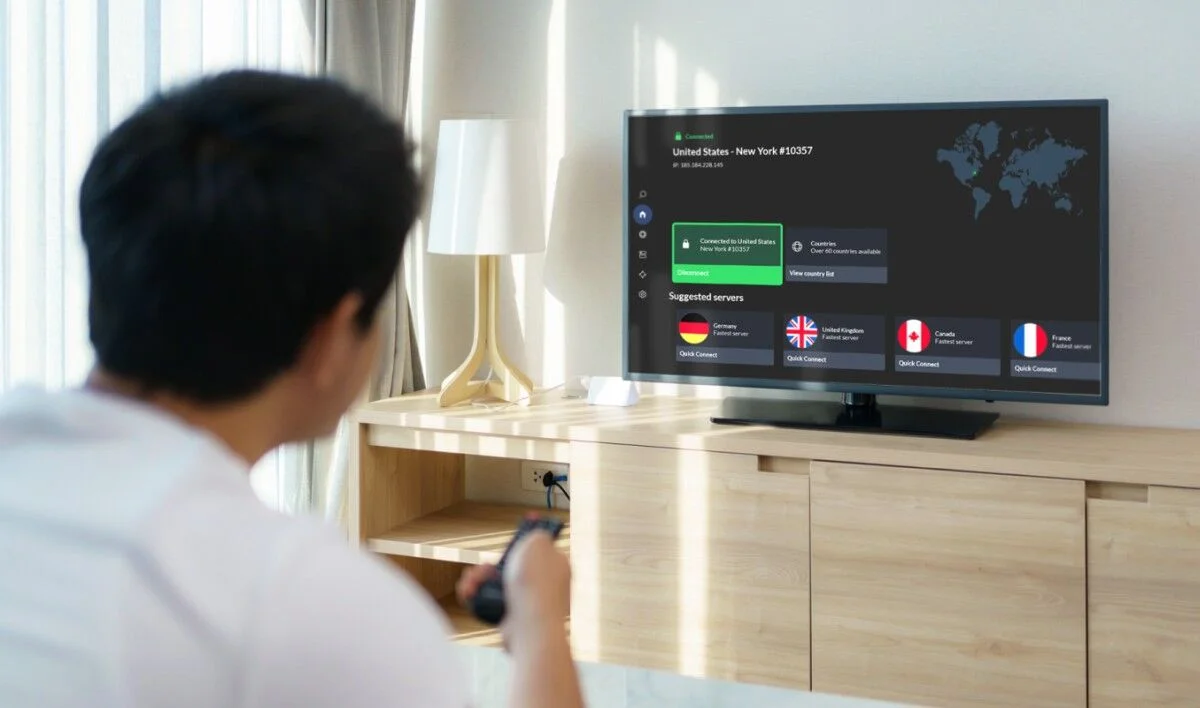

This guide walks through the exact steps to install Trimix IPTV on every supported device in 2026. Whether you are running Firestick, Samsung or LG Smart TV, Apple TV, iPhone, iPad, Android, Windows, Mac, or a MAG or Formuler box, the process has been simplified to under 10 minutes from install to first stream. The steps are the same regardless of which Trimix IPTV Subscription plan you purchased — the channel lineup, the on-demand library, and every live sports and pay-per-view event are included on every tier.
If you have not yet purchased a subscription, this guide still applies to the 24-hour free trial. The trial gives you full access to the entire channel lineup, the entire on-demand library, and every live sports event for 24 hours with no payment required. You can test it on the exact device you plan to use, on the exact internet connection you have, during the exact hours you will actually be watching — and then decide whether to upgrade to a paid plan.
The setup process has three components: receiving your login credentials, installing a compatible IPTV player, and pasting the credentials into that player. Every device needs all three. What changes from device to device is only how you install the player. The login method itself is identical across every player and every device: Xtream Codes API, with a server URL, a username, and a password.
Before You Start: What You Need
Before you begin setup, confirm three things. First, that you have an active Trimix IPTV Subscription or a running free trial. If you do not, message the support team on WhatsApp to activate either one. Second, that you have your login credentials ready — the server URL, username, and password sent to you in WhatsApp. Third, that you have at least 25 Mbps of download speed at the device for 4K viewing, or 15 Mbps for Full HD. A wired Ethernet connection is more stable than Wi-Fi, especially on Firestick and Android TV devices that sit behind a television.
The Trimix IPTV Subscription works on every modern streaming device, and you can install the same subscription on more than one device without paying extra. Only the number of simultaneous streams is limited by your plan — one, two, or three screens at the same time. You can install the player on ten devices if you want, as long as you only watch on one, two, or three at any given moment.
Step 1: Getting Your Login Credentials
Your login credentials arrive as a short message from the Trimix IPTV support team in WhatsApp, and they include three fields: a server URL, a username, and a password. These three fields are what every IPTV player needs to load the channel list. They arrive in the Xtream Codes API format, which is the industry-standard format used by IPTV Smarters Pro, TiviMate, IBO Player Pro, XCIPTV, GSE Smart IPTV, IPTV Extreme Pro, and every other major player.
Save the credentials somewhere safe — a password manager, a note on your phone, or an email to yourself. You will only need to enter them once per device, but if you ever reset your player, move to a new device, or clear the app data, you will need the same credentials again. The single most common setup mistake on day one is a typo in the server URL, so whenever possible, copy and paste rather than type by hand.
Step 2: Installing the Player on Your Device
The IPTV player is the app that reads your credentials and displays the channels. It is separate from the Trimix IPTV Subscription — the subscription is the access, and the player is the software that shows the content. Every device has a recommended player, and the installation steps for each are below. All the recommended players are either free or have a free version, so there is no additional cost beyond the subscription itself.
Firestick and Fire TV Cube
- From the Firestick home screen, open Settings → My Fire TV → Developer Options.
- Enable "Install Unknown Apps" for the Downloader app (install Downloader from the Amazon App Store if you do not already have it).
- Open Downloader and enter the URL for the IPTV Smarters Pro APK. Your Trimix IPTV support team will send you the current URL in the WhatsApp chat.
- Once the download completes, follow the on-screen prompts to install the APK.
- Open IPTV Smarters Pro from the Firestick home screen.
If you prefer to install IPTV Smarters Pro from the Amazon App Store instead of sideloading, search for it by name. Some Fire TV devices have it available directly, while others require sideloading via Downloader. Either method delivers the same player with identical functionality. The app store version updates automatically, which is convenient, while the sideloaded version gives you full control over updates.
Samsung and LG Smart TVs
- From your TV home screen, open the Samsung App Store (Tizen) or the LG Content Store (webOS).
- Search for "IPTV Smarters Pro" and select the app from the results.
- Press Install and wait for the app to finish downloading.
- Open IPTV Smarters Pro from your TV app menu.
On Samsung Smart TVs, IPTV Smarters Pro is available from 2017 models and newer. On LG Smart TVs, it is available from 2018 models and newer. If your TV is older than that, install a Firestick 4K Max instead — it plugs into any HDMI port and delivers full 4K playback on any television, old or new. That is the most common solution for older Samsung and LG TVs, and it works in under 5 minutes.
Apple TV, iPhone, and iPad
- Open the App Store on your Apple device.
- Search for "IPTV Smarters Player Lite" or "IPTVX" and install the version that matches your device.
- Open the app once installed.
On Apple TV 4K, IPTVX and GSE Smart IPTV are the two best options because they support AirPlay 2, Picture in Picture, and iCloud sync for favorites. On iPhone and iPad, IPTV Smarters Player Lite is the easiest app to install because it is available directly on the App Store. All three players support the same Xtream Codes API login, so the credentials work identically on any of them.
Android TV, Google TV, and Android Boxes
- From your Android TV home screen, open the Google Play Store.
- Search for "IPTV Smarters Pro" and install it from the results.
- Open IPTV Smarters Pro once installed.
On Android TV and Google TV, IPTV Smarters Pro is available directly from the Play Store and installs in about 30 seconds. On Android boxes that do not have Play Store access, install the APK via a browser or sideload via the file manager. TiviMate is also available on Android TV and Google TV via the Play Store, and is the best option if you plan to record live sports or manage multiple playlists from one interface.
Windows PC and Mac
- Open a browser and go to the IPTV Smarters Pro web player, or download the desktop app from the official IPTV Smarters site.
- Alternatively, install VLC Media Player if you prefer to use an M3U playlist.
- Open the player once installed.
On Windows and Mac, the fastest option is the browser version of IPTV Smarters Pro, which runs immediately with no installation. If you prefer a desktop app, the official IPTV Smarters Pro installer works on Windows 10, Windows 11, and macOS Sonoma and newer. VLC Media Player also works if you ask the support team for an M3U URL instead of Xtream Codes credentials — but the full player experience is better on IPTV Smarters Pro because it includes the EPG, favorites, and search functionality that VLC lacks.
MAG and Formuler Boxes
- Open the portal settings in your MAG or Formuler box.
- Enter the portal URL provided by the Trimix IPTV support team.
- Enter your MAC address exactly as it appears on the device label.
- Save the settings and restart the box.
MAG and Formuler boxes use a different login method than the other devices on this list. They use a portal URL and MAC address pairing instead of the Xtream Codes API. Message the support team on WhatsApp with your MAC address and we will activate the subscription on our side within minutes. After that, the box pulls the channel list from the portal automatically, with full EPG support and no further configuration needed.
Step 3: Logging In With Xtream Codes API
Once the player is installed, the login process is identical across every device. Open the app, and on the welcome screen select "Login with Xtream Codes API" — that is the option that matches the format of the credentials you received. Paste the server URL, the username, and the password in the three fields, then press login. Some players label the fields slightly differently — "host" or "server" for the URL, "user" for the username — but the meaning is always the same.
If the login fails on the first attempt, check three things in this order. First, confirm that the server URL has no trailing slash and no extra spaces. Second, confirm that the username and password were pasted exactly as they appear in WhatsApp. Third, confirm that your device is connected to the internet by opening a browser or another streaming app. Nine out of ten first-attempt login failures are caused by one of these three things, and each takes under 30 seconds to fix.
Step 4: Loading Content and First Stream
After a successful login, the player downloads your full playlist in the background. The first sync takes about 60 to 90 seconds on a Firestick 4K Max and about two minutes on an older device. During the sync, you will see a progress indicator and the channel list will populate gradually. Once it finishes, the 7-day EPG guide will also populate, usually within another 30 seconds.
After the initial sync, the playlist is cached locally. That means every subsequent launch of the player is instant, and you will not need to wait for the full download again. The EPG guide refreshes every six hours in the background, and the on-demand library stays current with no manual updates. If you clear the app data for any reason, the full sync will happen again on next launch — but it only takes about 90 seconds.
Setup Times by Device
| Device | Recommended Player | Install Time | First Sync | Total Setup |
|---|---|---|---|---|
| Firestick 4K Max | IPTV Smarters Pro | 2 to 3 min | 60 to 90 sec | Under 5 min |
| Samsung Smart TV | IPTV Smarters Pro | 1 min | 60 to 90 sec | Under 3 min |
| LG Smart TV | IPTV Smarters Pro | 1 min | 60 to 90 sec | Under 3 min |
| Apple TV 4K | IPTVX or GSE Smart IPTV | 2 min | 60 to 90 sec | Under 5 min |
| iPhone or iPad | IPTV Smarters Player Lite | 1 min | 60 to 90 sec | Under 3 min |
| Android TV / Google TV | IPTV Smarters Pro | 30 sec | 60 to 90 sec | Under 3 min |
| Windows or Mac | IPTV Smarters Pro (web) | 0 min | 60 to 90 sec | Under 2 min |
| MAG or Formuler box | Native portal | 1 min | 30 to 60 sec | Under 2 min |
Optimizing Your Player After Setup
A few settings make any player perform better with Trimix IPTV. First, enable hardware decoding in the player settings. Software decoding uses more CPU and can cause frame drops on 4K streams. Second, set the buffer size to medium — very small buffers cause stuttering on live sport, and very large buffers introduce channel-change delay without improving stability. Third, disable any auto-sleep or screensaver features so the stream does not pause during long events.
Fourth, if your player supports it, enable the fast channel change option. It pre-loads adjacent channels so zapping feels instant. Fifth, clear the player cache every two weeks if you have a Firestick Lite or another device with limited storage. Cached thumbnails and EPG data accumulate over time and can slow the player down. Sixth, if your player supports HLS as a stream format, use it for on-demand movies and TS for live sports — the two formats behave differently under network pressure.
- Enable hardware decoding for stable 4K 60FPS playback
- Set buffer size to medium to avoid stuttering without slow channel changes
- Enable fast channel change if the player supports it for instant zapping
- Clear app cache every 2 weeks on Firestick Lite and low-storage devices
- Use HLS for movies, TS for live sports if your player offers both formats
- Wire in with Ethernet on Firestick and Android TV if Wi-Fi is unstable behind the TV
Common Setup Issues and How to Fix Them
Set up works smoothly for most customers, but a few small issues occasionally happen on the first attempt. If your login fails with an error, the cause is almost always a trailing space at the end of the server URL, a mistyped username, or a missing character in the password. Copy and paste the credentials from the WhatsApp message rather than retyping them, and try again. If the login still fails, message the support team with a screenshot of the error and we will resolve it within minutes.
If the channel list loads but specific channels buffer, the cause is usually the player's decoder setting. In IPTV Smarters Pro, open Settings, then Player, and switch the decoder to Hardware. That single change resolves buffering on about 20% of first-day setups. If buffering happens across all channels, the cause is almost always a weak Wi-Fi signal at the device — move the Firestick out from behind the TV or wire it in with an Ethernet adapter.
If the player installs but the app crashes on launch, the cause is usually insufficient free storage on the device. On Firestick, open Settings → My Fire TV → About → Storage to check free space. IPTV Smarters Pro needs about 100 MB of free storage to install and load its initial playlist. If free storage is under 200 MB, uninstall another app or clear the cache on one you do not use often, then retry the install. That resolves every app-crash-on-launch issue we see in support.
Frequently Asked Questions
05 QuestionsHow do I set up Trimix IPTV on Firestick?
Install the Downloader app from the Amazon App Store, enable Install Unknown Apps for Downloader in Settings → My Fire TV → Developer Options, open Downloader and enter the IPTV Smarters Pro APK URL sent by support, install the APK, open IPTV Smarters Pro, select "Login with Xtream Codes API", paste your server URL, username, and password, and press login. Total setup takes about 5 minutes from start to first stream.
Which player should I install for Trimix IPTV?
IPTV Smarters Pro is the best overall player for every device from Firestick to Apple TV. TiviMate is best for power users who want recording and advanced EPG. IPTVX and GSE Smart IPTV are the best options for Apple TV and iOS. On Samsung and LG Smart TVs, IPTV Smarters Pro is available directly from the TV app store. On Windows and Mac, the browser version of IPTV Smarters Pro runs immediately with no installation.
How long does Trimix IPTV setup take?
Setup takes under 5 minutes on Firestick, under 3 minutes on Smart TVs and Android TV, under 5 minutes on Apple TV, under 2 minutes on Windows or Mac, and under 2 minutes on MAG or Formuler boxes. The first channel list sync takes 60 to 90 seconds on the initial launch. Every subsequent launch of the player is instant because the playlist is cached locally.
Can I install Trimix IPTV on more than one device?
Yes. You can install the player on unlimited devices against the same Trimix IPTV Subscription. Only the number of simultaneous streams is limited by your plan — one screen on the 1-Device plan, two screens on the 2-Device plan, and three screens on the 3-Device plan. You can also add, remove, and change devices at any time by messaging the support team on WhatsApp.
Why does my Trimix IPTV login fail?
The most common causes of a failed login are a trailing space at the end of the server URL, a mistyped username, and a missing character in the password. Copy and paste the credentials from the WhatsApp message rather than retyping them. If the login still fails, message support on WhatsApp with a screenshot of the error — most login failures are resolved in under 2 minutes. A full uninstall and reinstall of the player also resolves stale-cache login failures.
Our Honest Take
Trimix IPTV setup is designed to be as simple as possible on every device. The login format is identical across every player, the recommended players are free or have free versions, and the entire process from install to first stream takes under 10 minutes on any modern device. The most complicated part of any IPTV setup is remembering that the server URL, username, and password are case-sensitive and must be pasted exactly as they appear in WhatsApp — everything else is straightforward.
If you get stuck at any point, the Trimix IPTV support team is on WhatsApp 24/7 to walk you through the exact steps for your specific device. We have set up subscribers on Firestick, Samsung, LG, Apple TV, iPhone, Android, Windows, Mac, MAG, Formuler, and every other device type, and we can get you streaming in under 10 minutes regardless of where you are starting from. Message us on WhatsApp, or browse the full plan tiers on the pricing page if you have not yet subscribed.