
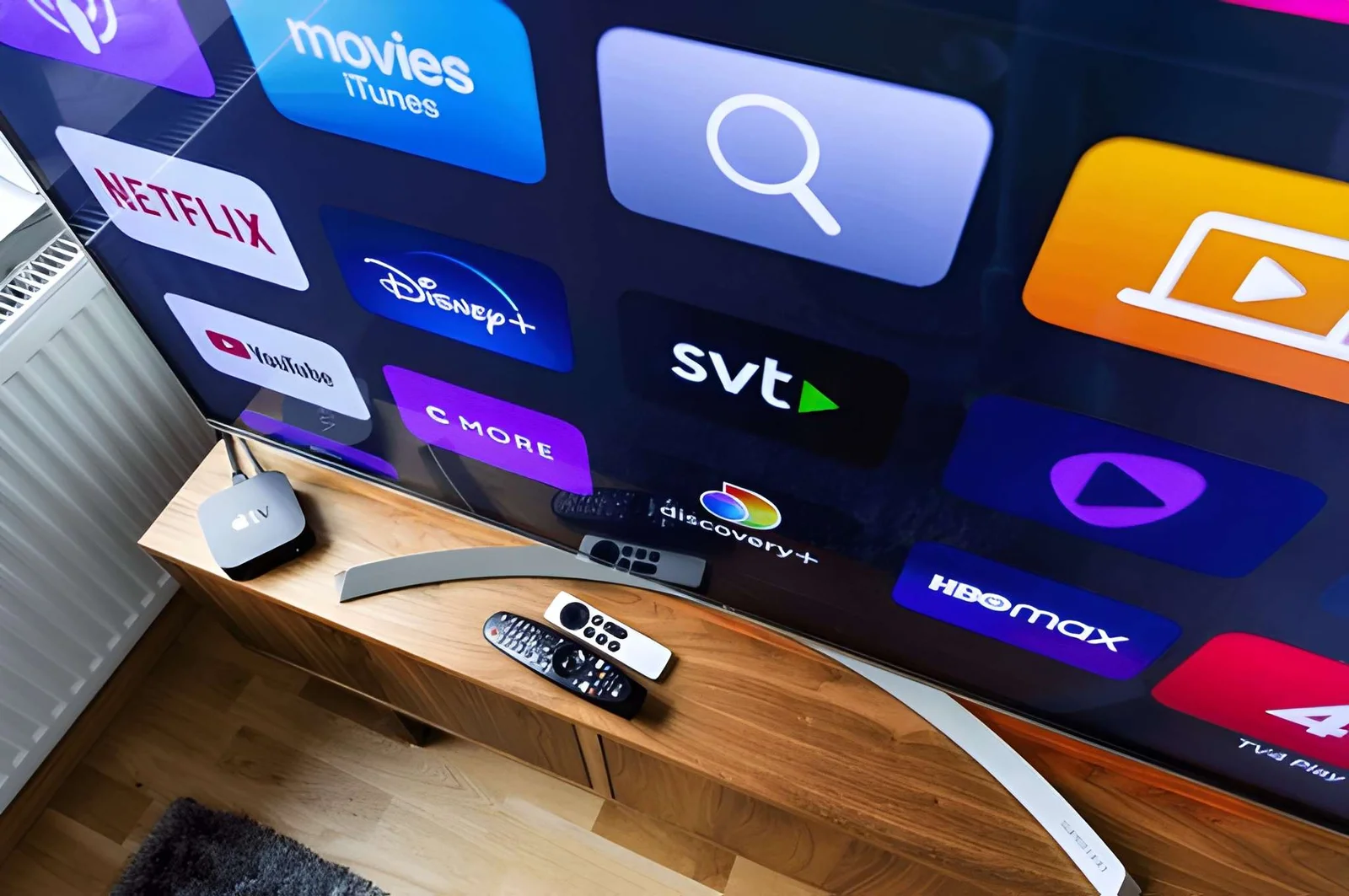

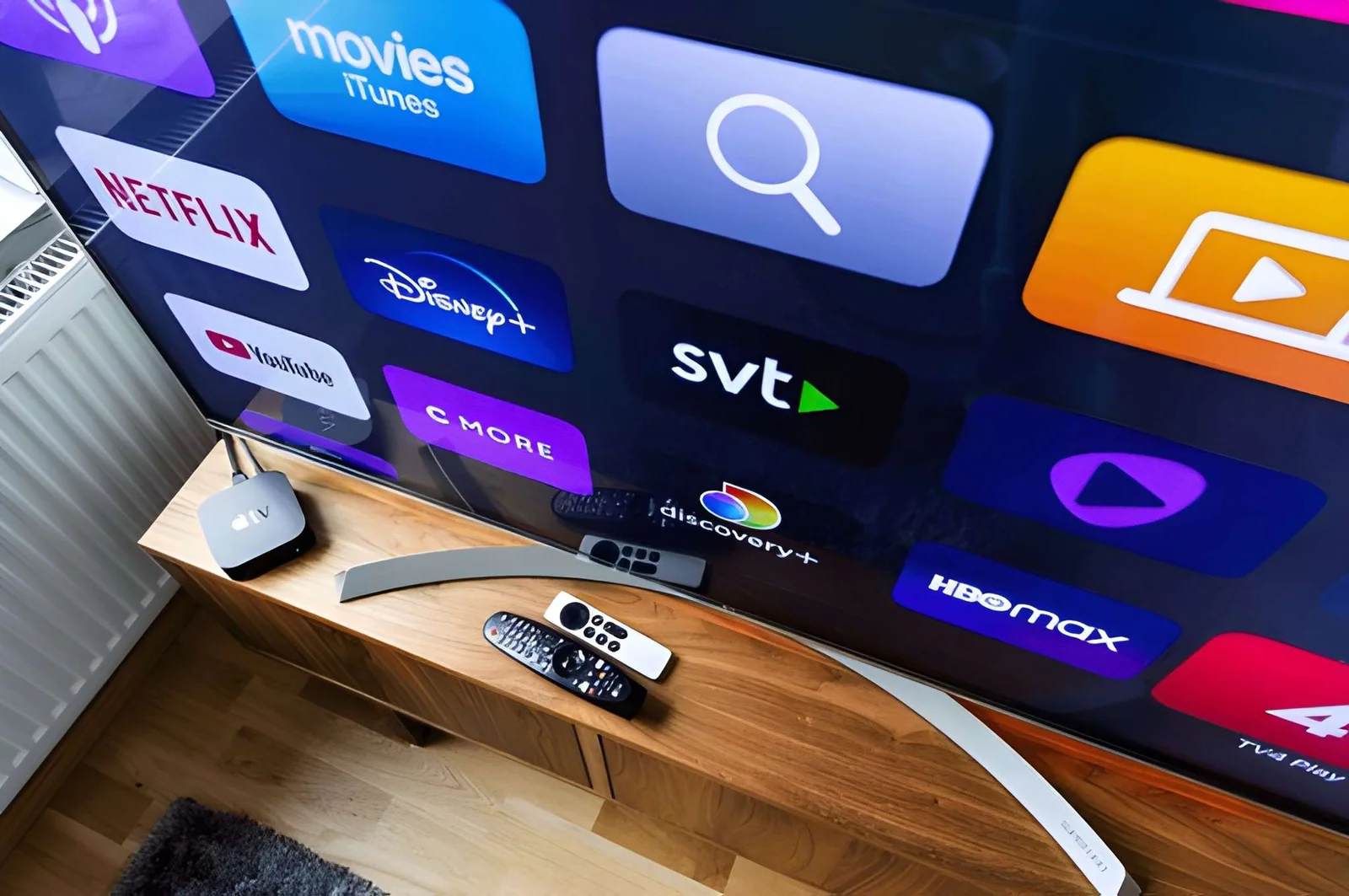
The three most common devices people ask about when they are considering a Trimix IPTV Subscription are Samsung Smart TVs, LG Smart TVs, and Roku streaming devices. All three work with Trimix IPTV, but the setup process is different for each, and there are a few device-specific quirks worth knowing before you start. This guide walks through exactly how to install and run Trimix IPTV on each of the three, including what to do if your device is older than the supported minimum version.
The good news is that all three platforms support the Xtream Codes API login format that Trimix IPTV uses, which means the actual login process is identical across all of them. What changes from device to device is the player app you install and the exact steps for installing it. Once the player is installed, you paste your server URL, username, and password, and your full channel list loads automatically. The whole process takes under 10 minutes on any of the three devices.
This article is part of our larger setup series. If you are setting up Trimix IPTV on a Firestick, Apple TV, Android TV, or a PC or Mac, the device-specific walkthroughs for those are in our main setup guide. If you are on a Samsung, LG, or Roku device, this article is the one you want.
Do Samsung, LG, and Roku Support IPTV?
Yes, all three platforms support IPTV, with a few caveats. Samsung Smart TVs support IPTV through the Tizen app store, which has IPTV Smarters Pro available directly. LG Smart TVs support IPTV through the LG Content Store (webOS), which also has IPTV Smarters Pro available directly. Roku supports IPTV through the Roku Channel Store, but the available IPTV apps are more limited than on Samsung and LG, so we recommend a specific workaround on Roku which is covered in detail below.
The minimum supported versions vary by platform. On Samsung, IPTV Smarters Pro requires Tizen firmware 2017 or newer. On LG, IPTV Smarters Pro requires webOS 2018 or newer. On Roku, the recommended IPTV apps require Roku OS 9.1 or newer. If your device is older than the minimum version, you have two options: install a Firestick 4K Max into an HDMI port, which works on any television regardless of age, or use the Roku-compatible workaround described below.
Samsung Smart TV Setup (Tizen)
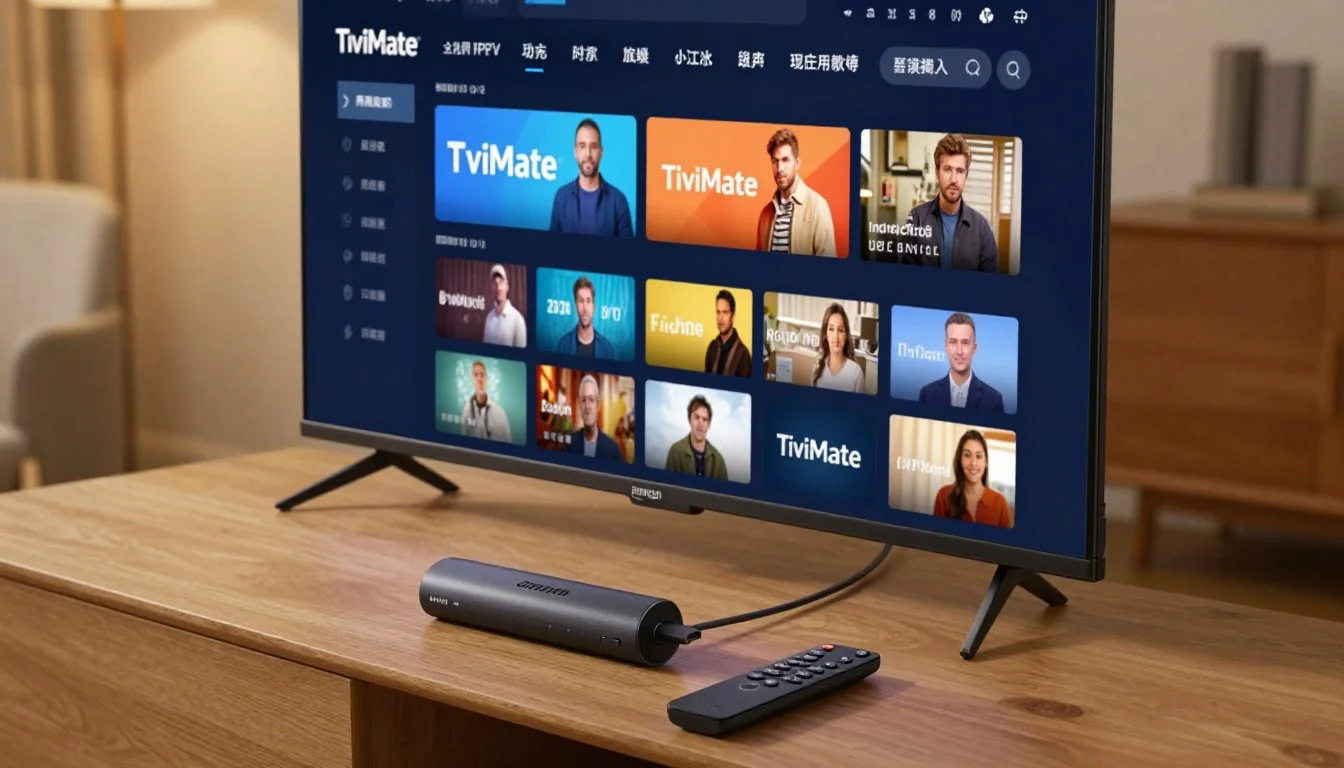
Samsung Smart TVs run on Tizen OS, and the Samsung app store has IPTV Smarters Pro available directly for all models from 2017 onwards. The install process is simple, and the entire setup takes about three minutes from opening the app store to watching your first channel. The recommended player on Samsung is IPTV Smarters Pro because it is available natively from the Samsung store, supports the full Xtream Codes API, and handles 4K 60FPS playback smoothly on every modern Samsung TV.
Installing IPTV Smarters Pro on Samsung
- Press the Home button on your Samsung remote to open the Smart Hub.
- Navigate to Apps and open the Samsung App Store.
- Search for "IPTV Smarters Pro" and select the app from the results.
- Press Install and wait for the download to finish (about 30 to 60 seconds).
- Open IPTV Smarters Pro from your apps menu.
- Select "Login with Xtream Codes API" on the welcome screen.
- Paste the server URL, username, and password sent by the Trimix IPTV support team.
- Press Login and wait 60 to 90 seconds for the initial channel list sync.
If you cannot find IPTV Smarters Pro in the Samsung app store, check two things. First, confirm your TV model year is 2017 or newer by going to Settings → Support → About This TV. Second, confirm the app store region matches your country — some Samsung app stores require a different region setting to show all apps. If both are correct and the app still does not appear, message the Trimix IPTV support team on WhatsApp and we will provide an alternative install method for your model.
LG Smart TV Setup (webOS)
LG Smart TVs run on webOS, and the LG Content Store has IPTV Smarters Pro available directly for all models from 2018 onwards. The install process is almost identical to Samsung, and the entire setup takes about three minutes. The recommended player on LG is IPTV Smarters Pro for the same reasons as on Samsung: native availability, full Xtream Codes API support, and smooth 4K 60FPS playback on every modern LG TV.
Installing IPTV Smarters Pro on LG
- Press the Home button on your LG remote to open the webOS home screen.
- Navigate to the LG Content Store icon in the app launcher bar.
- Search for "IPTV Smarters Pro" and select the app from the results.
- Press Install and wait for the download to finish (about 30 to 60 seconds).
- Open IPTV Smarters Pro from your apps menu.
- Select "Login with Xtream Codes API" on the welcome screen.
- Paste the server URL, username, and password sent by the Trimix IPTV support team.
- Press Login and wait 60 to 90 seconds for the initial channel list sync.
If you cannot find IPTV Smarters Pro in the LG Content Store, check your LG TV model year by going to Settings → All Settings → General → About This TV. If the TV is from 2017 or earlier, the app is not available and you need an alternative approach. The fastest alternative is to install a Firestick 4K Max into an HDMI port and use IPTV Smarters Pro through the Firestick — it delivers the full Trimix IPTV experience including 4K playback on any LG TV regardless of age.
Roku Setup
Roku is the most limited of the three platforms for IPTV because the Roku Channel Store does not carry IPTV Smarters Pro. That means the standard setup path used on Samsung and LG does not work on Roku. However, there are two reliable alternatives that work well, and one of them is actually superior to the standard path in terms of streaming quality.
Option 1: IPTV Smarters Player Lite (Official Roku App)
IPTV Smarters Player Lite is available on the Roku Channel Store and supports the full Xtream Codes API login format that Trimix IPTV uses. The interface is more basic than the full IPTV Smarters Pro app, and some advanced features like recording and multi-playlist support are not included, but it handles live TV, on-demand content, and EPG perfectly well. For a Roku-only household that does not want to add extra hardware, this is the recommended option.
- Press the Home button on your Roku remote.
- Scroll down to Streaming Channels and open the Roku Channel Store.
- Search for "IPTV Smarters Player Lite" and select it.
- Press Add Channel and wait for the install to finish.
- Open the app from your Roku home screen.
- Select "Login with Xtream Codes API" on the welcome screen.
- Paste the server URL, username, and password sent by support.
- Press Login and wait for the channel list to load.
Option 2: Firestick 4K Max (Recommended for Best Quality)
The Firestick 4K Max is the recommended option for any Roku household that wants the full Trimix IPTV experience with the smoothest 4K playback. It plugs into any HDMI port on your television, installs in under 5 minutes, and delivers the full IPTV Smarters Pro experience with all advanced features enabled. The Firestick 4K Max costs around $40 to $60 depending on the season, and it is a one-time purchase that you keep forever — unlike a cable box, there is no rental fee.
If you are going to add a Firestick anyway, the setup process follows the standard Firestick path covered in our main setup guide. You plug the Firestick into the TV's HDMI port, power it on, connect to Wi-Fi, install IPTV Smarters Pro through the Downloader app or the Amazon App Store, and paste the credentials from support. The whole process takes under 10 minutes and delivers the same experience as any other Firestick 4K Max household.
Roku vs Firestick vs Built-In TV Apps
| Feature | Samsung Smart TV | LG Smart TV | Roku | Firestick 4K Max |
|---|---|---|---|---|
| IPTV Smarters Pro available | Yes | Yes | No (Lite only) | Yes |
| Full Xtream Codes API | Yes | Yes | Yes (Lite) | Yes |
| 4K 60FPS support | Yes | Yes | Limited | Yes |
| Recording support | No | No | No | Yes (via TiviMate) |
| Minimum model year | 2017+ | 2018+ | Any with Roku OS 9.1+ | Any HDMI TV |
| Setup time | 3 min | 3 min | 3 min | 5 min |
| Extra hardware cost | None | None | None | $40 to $60 one-time |
Common Setup Issues on These Devices
The three most common issues on Samsung, LG, and Roku are all easy to fix. If the player app crashes on launch, the cause is usually insufficient free storage on the TV. Samsung and LG both report free storage in the Settings menu, and clearing the cache or uninstalling unused apps resolves this. If the player installs but the login fails, the cause is almost always a trailing space at the end of the server URL — copy and paste rather than typing the credentials by hand.
If the channel list loads but channels buffer, the cause is usually the player's decoder setting. In IPTV Smarters Pro, open Settings, then Player, and switch the decoder to Hardware. That single change resolves buffering on about 20% of setups. On Roku with IPTV Smarters Player Lite, buffering usually comes from Wi-Fi signal strength, so move the Roku stick out from behind the TV or use the Ethernet adapter for Roku if your model supports it.
If your TV is older than the minimum version required by the player, the simplest fix is to add a Firestick 4K Max into an HDMI port. This is the recommended solution for all Samsung TVs from 2016 and earlier, all LG TVs from 2017 and earlier, and any Roku device that cannot install IPTV Smarters Player Lite. The Firestick is a one-time $40 to $60 purchase that delivers the full Trimix IPTV experience on any television regardless of age.

Optimizing Your TV for Trimix IPTV
A few settings make Trimix IPTV perform better on Samsung, LG, and Roku devices. First, enable hardware decoding in the player settings for 4K 60FPS playback. Second, set the buffer size to medium — small buffers cause stuttering on live sports, and large buffers slow down channel changes. Third, disable auto-sleep and screensaver features so the stream does not pause during long events like a full NFL game.
- Enable hardware decoding in IPTV Smarters Pro settings for smooth 4K playback
- Set buffer size to medium to prevent stuttering without slowing channel changes
- Disable auto-sleep so the stream does not pause during long events
- Use Ethernet or 5GHz Wi-Fi for the most stable 4K playback on Smart TVs
- Clear app cache every 2 weeks to keep playback smooth on older models
- Update the TV firmware to the latest version for the best player compatibility
Frequently Asked Questions
05 QuestionsDoes Trimix IPTV work on Samsung Smart TVs?
Yes. Trimix IPTV works on every Samsung Smart TV from 2017 onwards. Install IPTV Smarters Pro directly from the Samsung app store, open the app, select "Login with Xtream Codes API", paste your server URL, username, and password from the WhatsApp message, and your channel list loads automatically. The whole process takes about 3 minutes. For Samsung TVs from 2016 or earlier, add a Firestick 4K Max into an HDMI port for the full experience.
Does Trimix IPTV work on LG Smart TVs?
Yes. Trimix IPTV works on every LG Smart TV from 2018 onwards. Install IPTV Smarters Pro directly from the LG Content Store, open the app, select "Login with Xtream Codes API", and paste your credentials. Setup takes about 3 minutes. For LG TVs from 2017 or earlier, the recommended solution is a Firestick 4K Max into an HDMI port, which delivers the full Trimix IPTV experience regardless of TV age.
Does Trimix IPTV work on Roku?
Yes, but with a caveat. Roku does not have IPTV Smarters Pro in its channel store, so the recommended option is IPTV Smarters Player Lite, which is available on Roku and supports the full Xtream Codes API login. It handles live TV, on-demand content, and EPG well but has fewer advanced features than the full app. For the best experience on Roku, add a Firestick 4K Max into an HDMI port — it delivers the full IPTV Smarters Pro experience with all advanced features enabled.
What is the minimum version for Samsung and LG Smart TVs?
For Samsung Smart TVs, IPTV Smarters Pro requires Tizen firmware from 2017 or newer. For LG Smart TVs, IPTV Smarters Pro requires webOS from 2018 or newer. If your TV is older than the minimum version, you have two options: install a Firestick 4K Max into an HDMI port, or use a different IPTV player app that may be available on your older firmware. The Firestick 4K Max is the recommended solution because it works on any television regardless of age.
Which is better for Trimix IPTV: built-in TV app or a Firestick?
For modern Samsung and LG Smart TVs (2017/2018 onwards), the built-in IPTV Smarters Pro app is the simplest option and delivers full 4K playback without any extra hardware. For older TVs, Roku, or any household that wants the most advanced features like recording and multi-playlist support, a Firestick 4K Max is the better choice. The Firestick is a one-time $40 to $60 purchase with no recurring fee, and it delivers the full IPTV Smarters Pro experience including 4K 60FPS playback and recording via TiviMate.
Our Honest Take
All three device families work well with Trimix IPTV, and the setup process is genuinely simple on every one of them. Samsung and LG Smart TVs from 2017 and 2018 onwards are the easiest devices to set up because the IPTV Smarters Pro app installs natively from the app store — no extra hardware, no sideloading, no Downloader app. Roku works reliably through IPTV Smarters Player Lite, though the interface is more limited than the full app, and the Firestick 4K Max remains the recommended option for Roku households that want the best possible experience.
If you are setting up Trimix IPTV on a Samsung, LG, or Roku device and are not sure which step you are on, message the support team on WhatsApp with your TV model and year and we will send a custom walkthrough. We have set up subscribers on every Samsung and LG model from 2015 onwards, and on every Roku device generation, and we can get you streaming in under 10 minutes regardless of what hardware you are starting from. Browse the full plan tiers on the pricing page if you have not yet subscribed, or request the free 24-hour trial to test it on your exact device first.